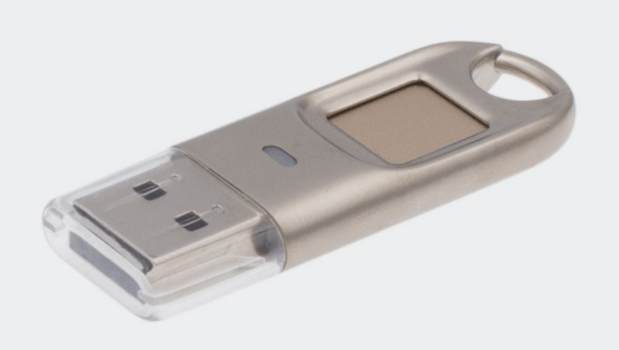
Initially, I thought my Feitian FIDO2 Key was similar to the Yubico, in that you touch it to activate it. After pulling out the Feitian box to see the other keys, I noticed this Feitian Key is called the BioPASS. Bio as in Biometrics, fingerprints. A little more reading and then seeing there is an application available in the MS Store to handle these fingerprints. So off I go and see what’s what.
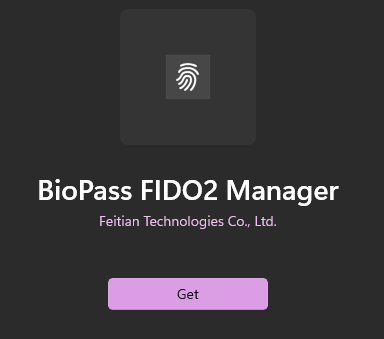
Once MS Store open, search for BioPass and then Get it.
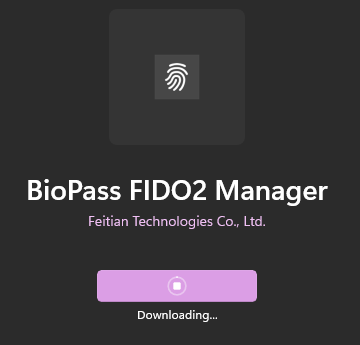
It’ll start downloading, it is a small app, so will take less than a few minutes.
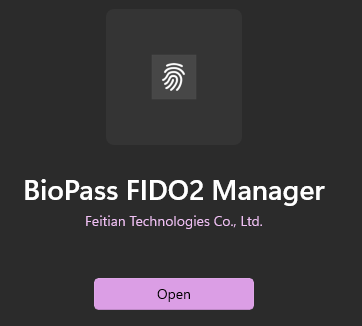
Once downloaded, click the Open button to execute the application.
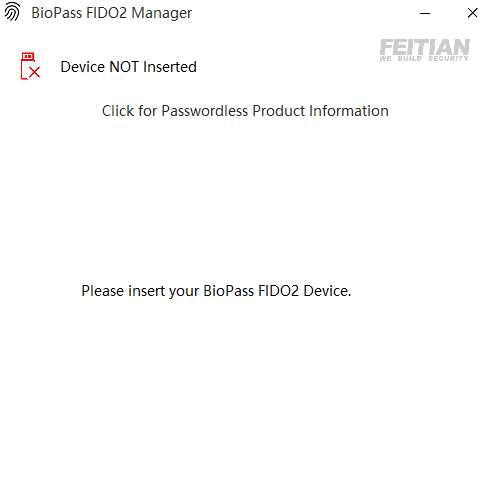
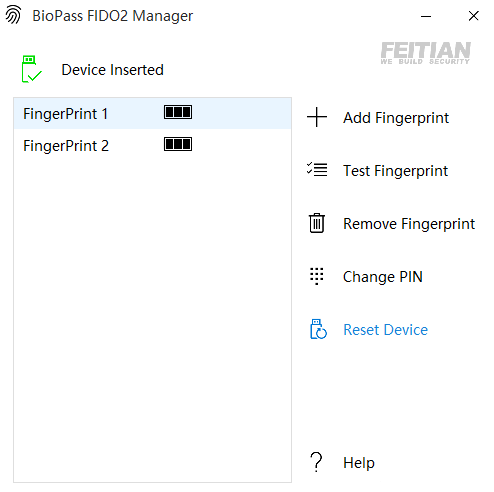
This’ll be the first screen you’ll see and it will request you to insert your BioPass key.
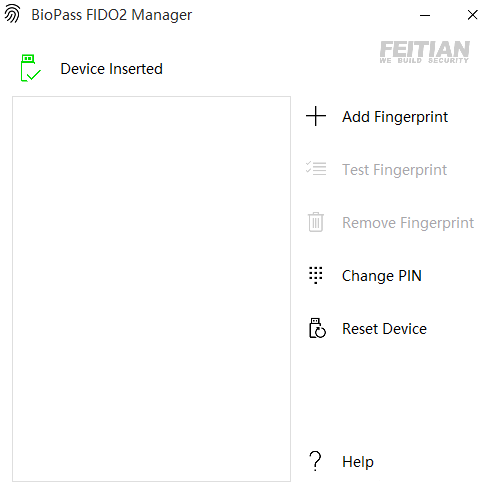
Click on Add Fingerprint.
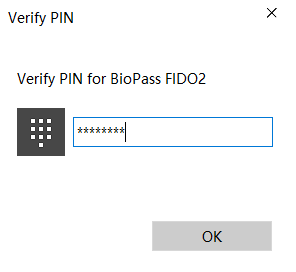
You’ll be requested for your PIN.
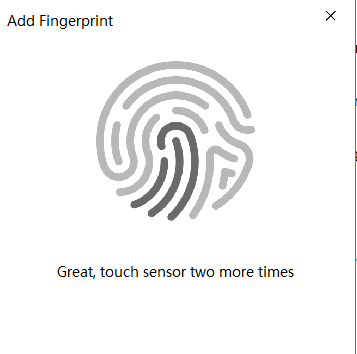
Choose a finger, press against scanner and follow the on screen prompts to scan all the ridges and indentions.
As a general rule or recommendation, do not rely on just one fingerprint. A minimum would be one fingerprint per hand.
Now that the fingerprints have been completed successfully, time to see if they actual work. So for me, i tried against O365.
With my Yubico Key, I am requested to touch the key and enter PIN code for access.
With my Feitian BioPASS Key, if I touch the key with my fingerprint, I am straight in. If I touch the key with the wrong finger, then I am prompted for my PIN code.
We are now in a World of Passwordless, the ability to access accounts, services and devices through Biometrics and Security Keys. To enhance security, to make things easier and, fundamentally, to allow us to purge our memories of passwords and ability of creation of new passwords. These Security Keys allow you to register them against accounts, services, devices, etc. and serve as a method of authentication.
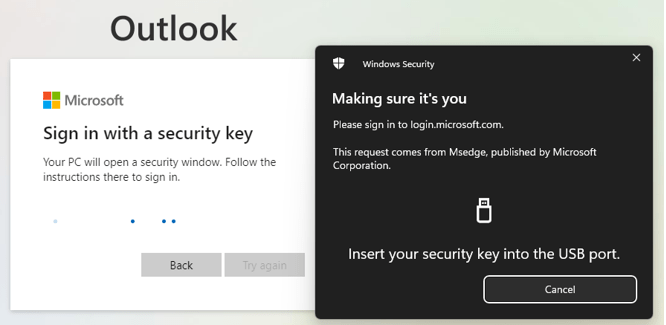
This example on the right is accessing Outlook Web Access. You’ll get the usual username/password prompt, but below is other options including Security Key. So after selecting Security Key, you are prompted with these windows. Insert key, enter PIN for verification and straight into Outlook. No username, email address or password needed. Note. The same prompt will appear regardless of whether it’s Feitian or Yubico.
As a technical person, my philosophy is never rely on one method of access. Multiple methods of access, in a priority listing; Biometrics, security keys, passwords.
ok, now i’d like to break this article down, due to recent experiences. Both of my keys are configured for various accounts, services and devices. All work perfectly. Log in, touch the key, all is good. However, as these keys were configured sometime back and the PIN set. I can no longer remember the PIN. What i thought it was, it wasn’t and i now needed to wipe/reset the key and start again. Note. Hence why i mentioned the multiple methods of access.
Click on link, download, unzip and execute. Once installed successfully, execute application.
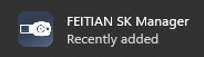
Search for Feitian or look for recently added applications, then double click to open.
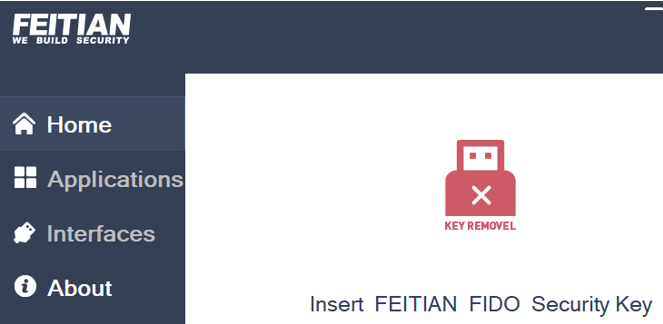
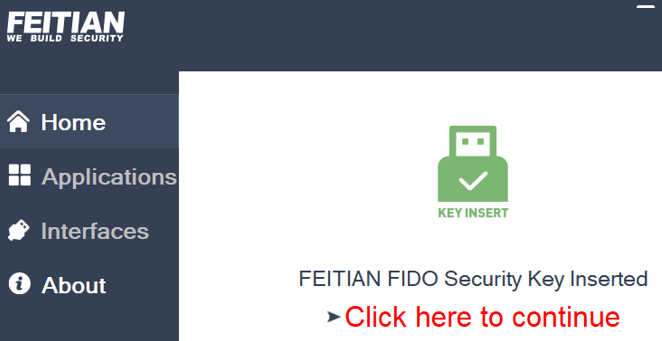
You’ll be presented with this screen, insert your Feitian Security Key.
The app will detect the key, the icon will change to green and you’ll have a message in red to click on.
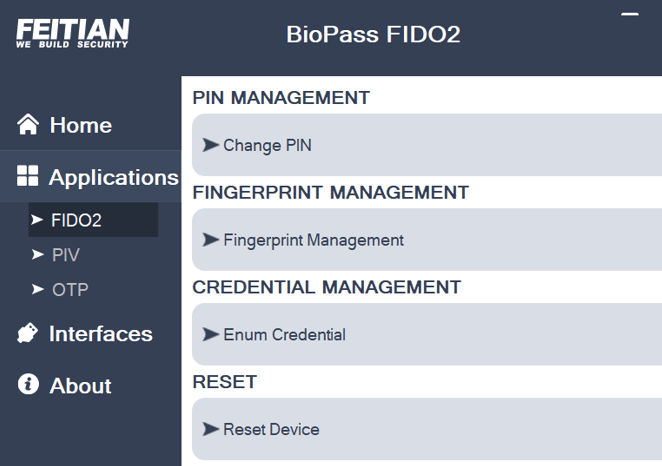
Navigate to Applications and then FIDO2 and click on Reset Device. It’ll ask you to remove and reinsert your Security Key in order to reset. Once done, re-navigate to FIDO2 and PIN Management and create a new PIN. Then exit app and navigate to your accounts, services and devices and configure them to accept your Security Key.
See this experience as your Q1 2022 cleansing. Clean out, refresh, delete if not needed. Similar to the cleansing out of social media accounts and contacts.
Same as before, click on link, download, unzip and execute. Once installed successfully, execute application.
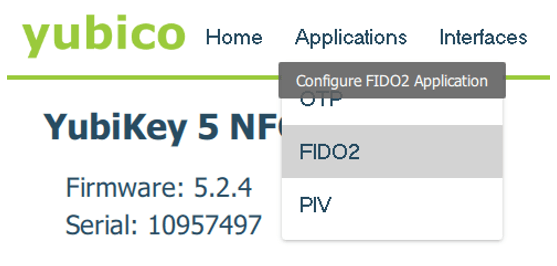
Search for YubiKey or look for recently added applications, then double click to open. Note. It appears this needs to be run as Administrator. So you’ll need to right click and Run As Administrator.
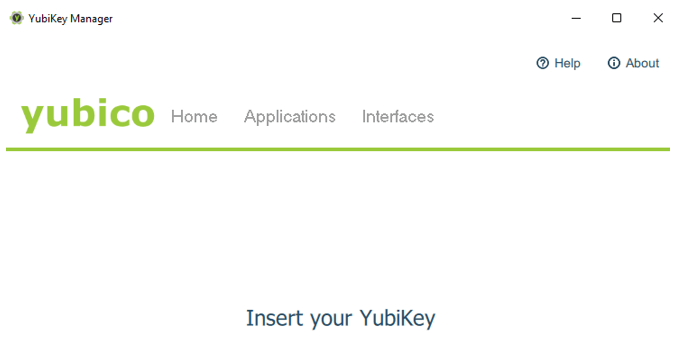
Insert your key, validate if needed.
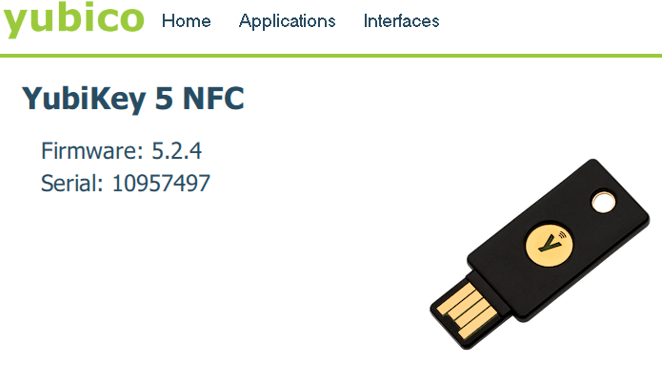
Once successful, you’ll see your key with any respective information.
Navigate to Applications and select FIDO2 from drop down list.
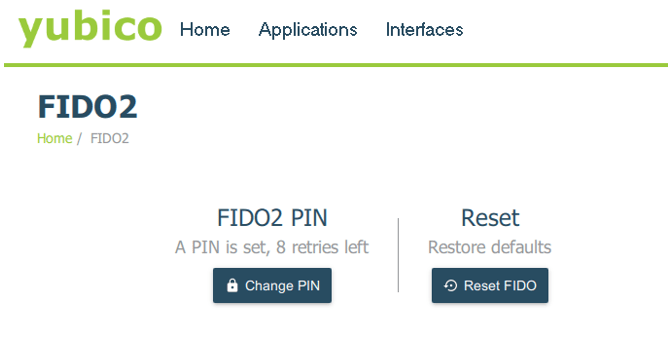
Same as before, Reset FIDO, remove/reinsert key for Reset and then navigate back to create a new PIN.
Just as an aside, depending on your age, you may remember this guy promoting a certain green can of beverage.
Lastly, you may query as to whether there is a real need for these keys. Are they being actively used with companies, or are they just a gimmick or back up solution. Honestly, it varies. I am seeing a lot of interested in Windows Hello and Biometrics. Ability to login without passwords essentially. However, before going down this route, you need to determine whether the device you intend to use is compatible. Does it have the correct camera, does it have the correct Windows version? From a company level, if not compatible, then is the plan to invest in new devices that are compatible or purchase accessories that will. Either way, then maybe the method forward would be to validate that what you have works, use keys for the ones that don’t with a view that when the upgrade occurs, they’ll have the correct device. Of course, this assumes they only use one device.
If I take myself as the example, at home I am fully compatible, in office with an accessory that makes me compatible, if on the road then not. But in all 3 locations, the key will always work.