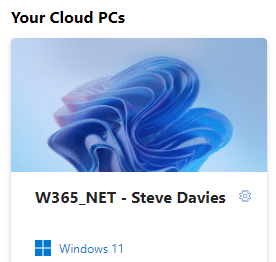
Windows365 CloudPC, Windows 10 or 11, serious horse power, accessibility through Browser or Remote Desktop, with a variety of provisioning options; Microsoft Hosted Network, Azure Network, On Premises Network….or a mix of all.
Category: New
-
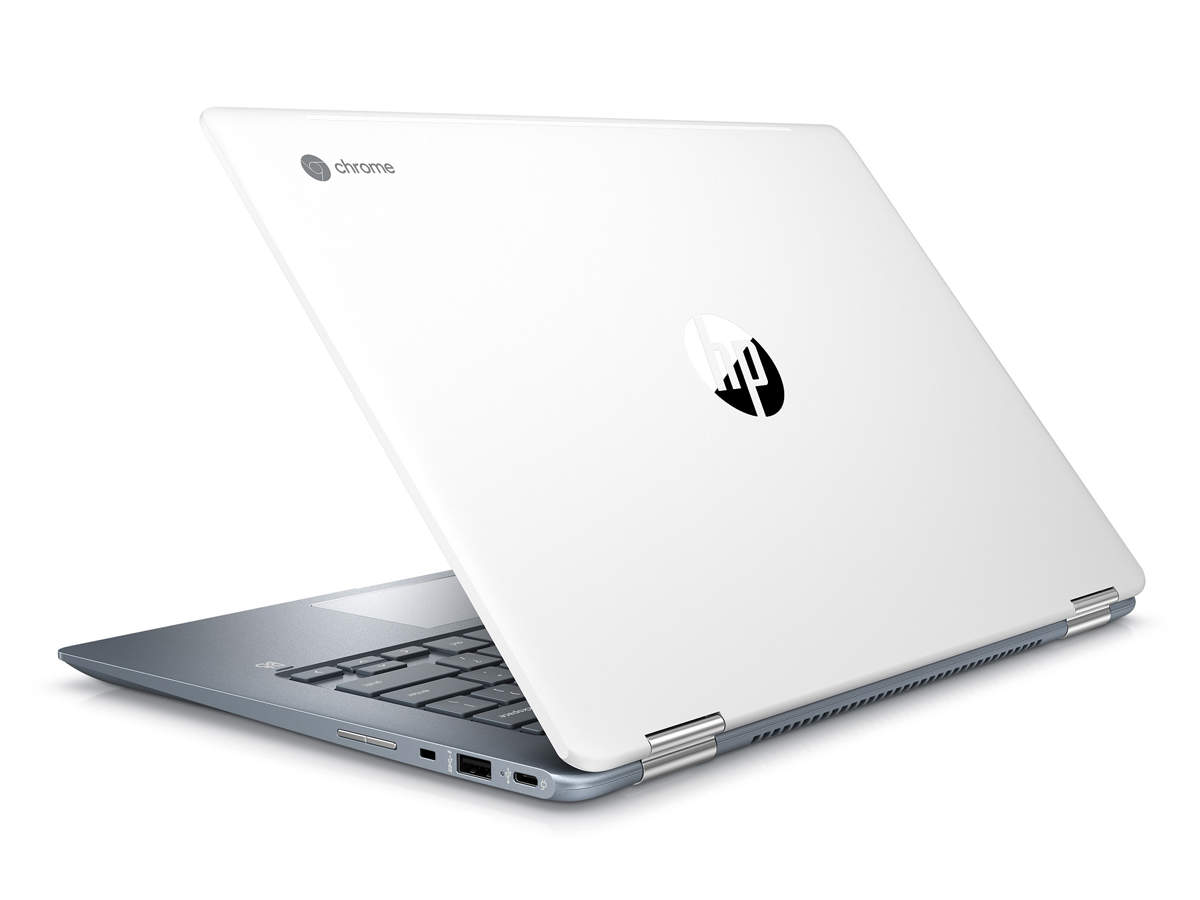
Chromebook in Intune? Yes/No?

So, is it possible to enroll Chromebook into Intune in the same way as a Windows device? In short, no. However, it is possible to protect the Application and Data. All it requires is a little manipulation surrounding several security policies. As you can see here, my Chromebook has installed Microsoft Onedrive and Teams. Whilst the App does reside on the Chromebook, there is no associated data and with the lack of available Apps in the Google Store, you’re pretty much using office.com to access most things. So as long as you have protected the data in such a way that you cannot download, this is pretty much the extend of “managing” your Chromebook. In essence, you will need to create an Application Protection Policy which covers the Applications you’re concerned about and then create a Conditional Access Policy which targets these devices and applies the Application Protection Policy. Which loosely translates to I am running an unmanaged device (Chromebook), I have installed Onedrive and Teams, please apply the Application Policy against me in order to apply various security data parameters.
Application Protection Policy.
https://endpoint.microsoft.com > Apps > Policy > App protection policies
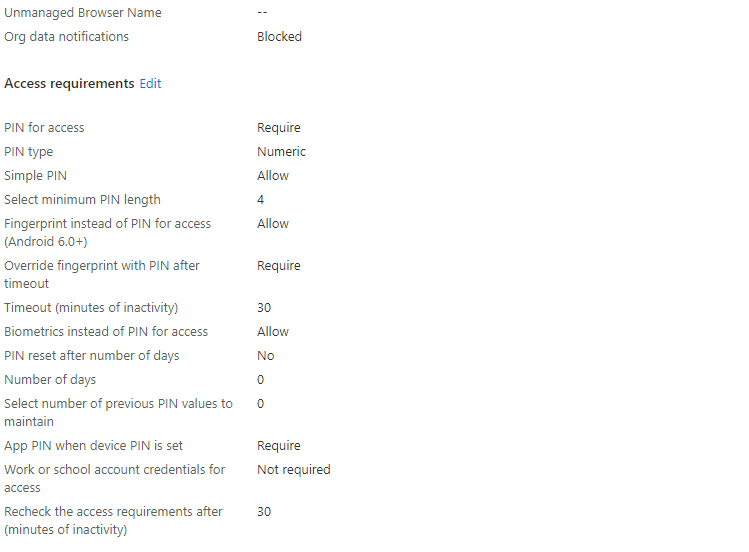
The configuration within here is of my selection, welcome to use the same settings. But the key thing is make sure it applies to your Unmanaged Chromebook Device.
-
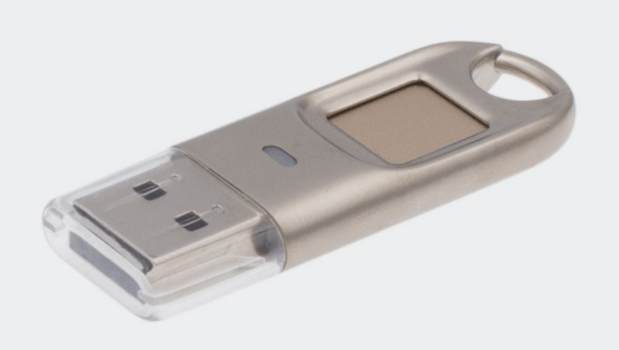
Feitian FIDO2 BioPass Security Key
Initially, I thought my Feitian FIDO2 Key was similar to the Yubico, in that you touch it to activate it. After pulling out the Feitian box to see the other keys, I noticed this Feitian Key is called the BioPASS. Bio as in Biometrics, fingerprints. A little more reading and then seeing there is an application available in the MS Store to handle these fingerprints. So off I go and see what’s what.
Once MS Store open, search for BioPass and then Get it.
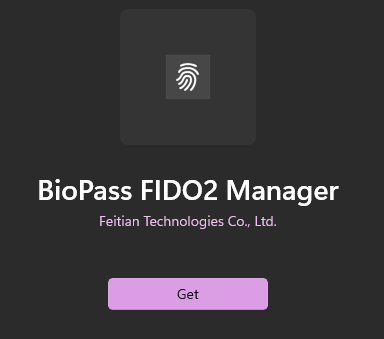
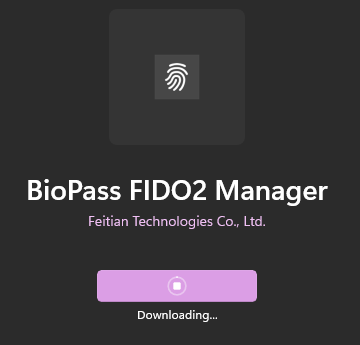
It’ll start downloading, it is a small app, so will take less than a few minutes.
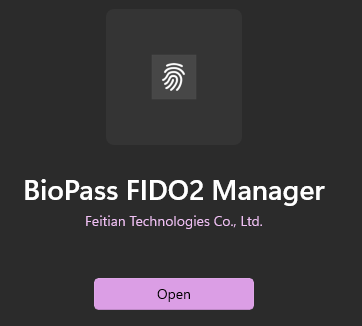
Once downloaded, click the Open button to execute the application.
This’ll be the first screen you’ll see and it will request you to insert your BioPass key.
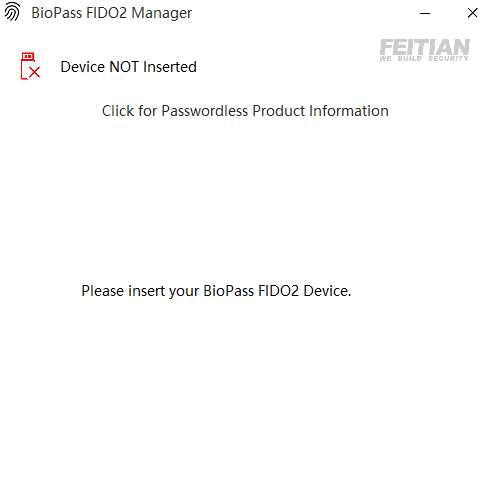
Click on Add Fingerprint.
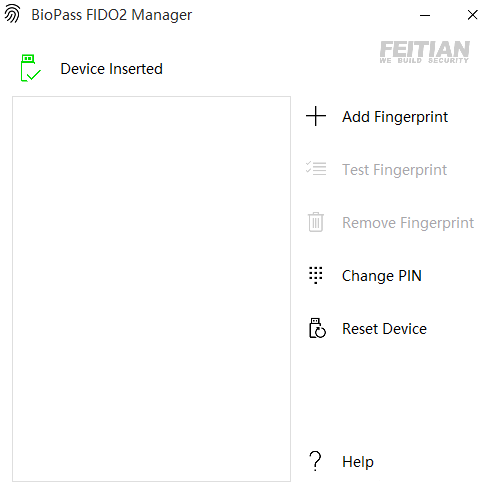
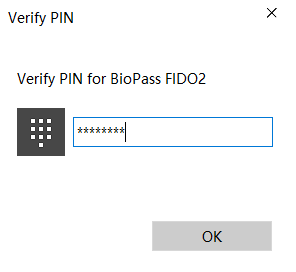
You’ll be requested for your PIN.
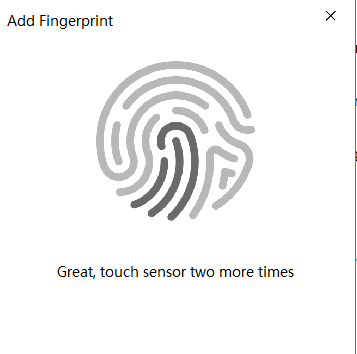
Choose a finger, press against scanner and follow the on screen prompts to scan all the ridges and indentions.
As a general rule or recommendation, do not rely on just one fingerprint. A minimum would be one fingerprint per hand.
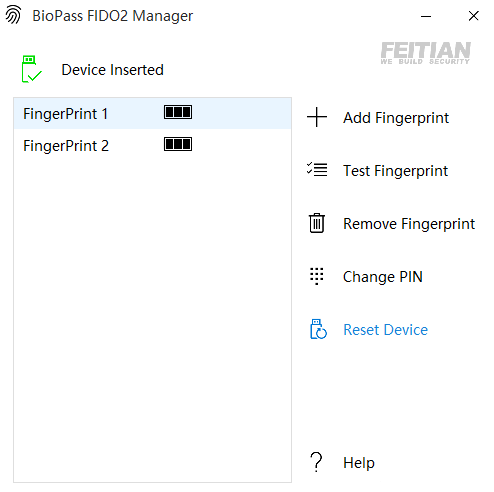
Now that the fingerprints have been completed successfully, time to see if they actual work. So for me, i tried against O365.
With my Yubico Key, I am requested to touch the key and enter PIN code for access.
With my Feitian BioPASS Key, if I touch the key with my fingerprint, I am straight in. If I touch the key with the wrong finger, then I am prompted for my PIN code.
-

FIDO2 Security Keys – Feitian & Yubico
We are now in a World of Passwordless, the ability to access accounts, services and devices through Biometrics and Security Keys. To enhance security, to make things easier and, fundamentally, to allow us to purge our memories of passwords and ability of creation of new passwords. These Security Keys allow you to register them against accounts, services, devices, etc. and serve as a method of authentication.
This example on the right is accessing Outlook Web Access. You’ll get the usual username/password prompt, but below is other options including Security Key. So after selecting Security Key, you are prompted with these windows. Insert key, enter PIN for verification and straight into Outlook. No username, email address or password needed. Note. The same prompt will appear regardless of whether it’s Feitian or Yubico.
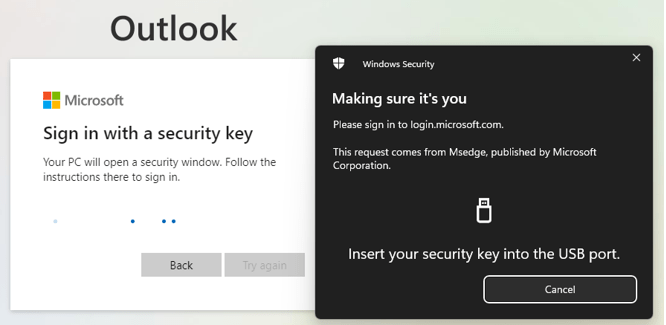
As a technical person, my philosophy is never rely on one method of access. Multiple methods of access, in a priority listing; Biometrics, security keys, passwords.
ok, now i’d like to break this article down, due to recent experiences. Both of my keys are configured for various accounts, services and devices. All work perfectly. Log in, touch the key, all is good. However, as these keys were configured sometime back and the PIN set. I can no longer remember the PIN. What i thought it was, it wasn’t and i now needed to wipe/reset the key and start again. Note. Hence why i mentioned the multiple methods of access.
The fix? Full Reset.
How? Software Needed.
Feitian
Click on link, download, unzip and execute. Once installed successfully, execute application.
Search for Feitian or look for recently added applications, then double click to open.

You’ll be presented with this screen, insert your Feitian Security Key.
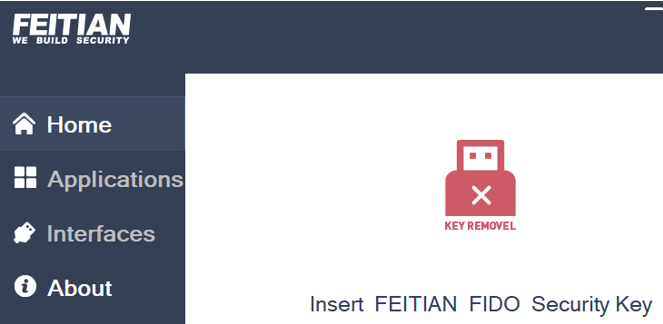
The app will detect the key, the icon will change to green and you’ll have a message in red to click on.
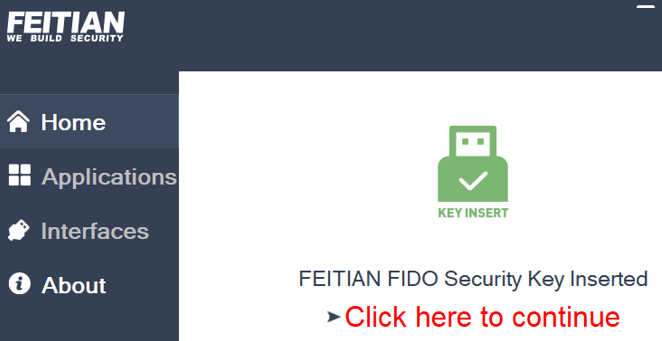
Navigate to Applications and then FIDO2 and click on Reset Device. It’ll ask you to remove and reinsert your Security Key in order to reset. Once done, re-navigate to FIDO2 and PIN Management and create a new PIN. Then exit app and navigate to your accounts, services and devices and configure them to accept your Security Key.
See this experience as your Q1 2022 cleansing. Clean out, refresh, delete if not needed. Similar to the cleansing out of social media accounts and contacts.
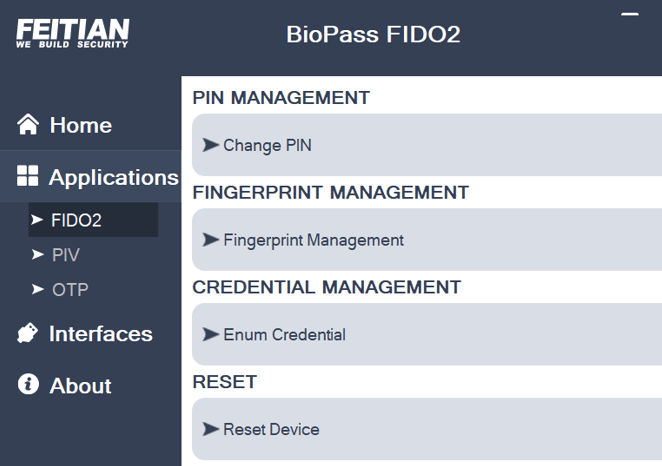
Yubico
Same as before, click on link, download, unzip and execute. Once installed successfully, execute application.
Search for YubiKey or look for recently added applications, then double click to open. Note. It appears this needs to be run as Administrator. So you’ll need to right click and Run As Administrator.

Insert your key, validate if needed.

Once successful, you’ll see your key with any respective information.
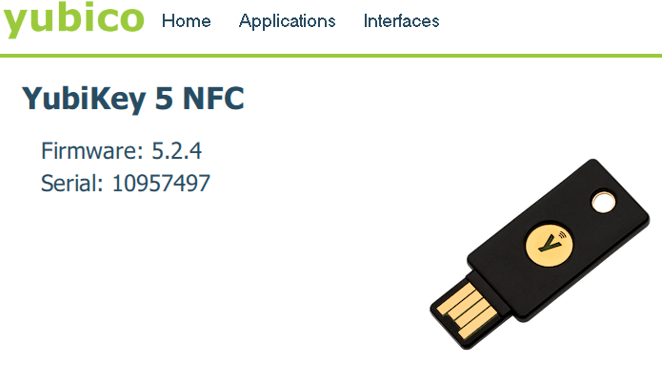
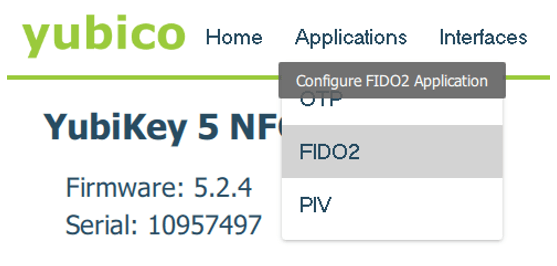
Navigate to Applications and select FIDO2 from drop down list.
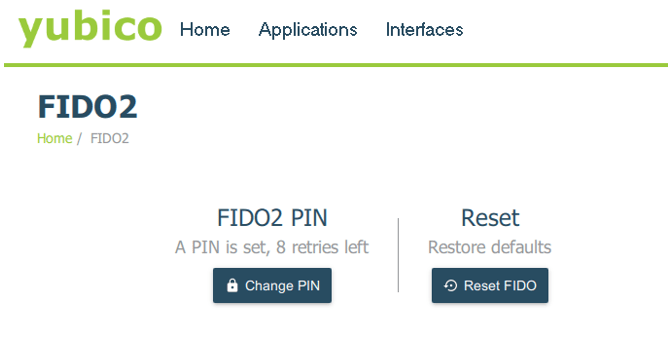
Same as before, Reset FIDO, remove/reinsert key for Reset and then navigate back to create a new PIN.
Just as an aside, depending on your age, you may remember this guy promoting a certain green can of beverage.
Lastly, you may query as to whether there is a real need for these keys. Are they being actively used with companies, or are they just a gimmick or back up solution. Honestly, it varies. I am seeing a lot of interested in Windows Hello and Biometrics. Ability to login without passwords essentially. However, before going down this route, you need to determine whether the device you intend to use is compatible. Does it have the correct camera, does it have the correct Windows version? From a company level, if not compatible, then is the plan to invest in new devices that are compatible or purchase accessories that will. Either way, then maybe the method forward would be to validate that what you have works, use keys for the ones that don’t with a view that when the upgrade occurs, they’ll have the correct device. Of course, this assumes they only use one device.
If I take myself as the example, at home I am fully compatible, in office with an accessory that makes me compatible, if on the road then not. But in all 3 locations, the key will always work.

-

Microsoft Connectivity Tools
Recently, we were trying to work out an issue whereby a virtual device we were accessing was breaking out to the Internet from India. Our first indication was the Google Browser defaulting to Google India. For us, very confusing. Our expectation was as standard of breakout from England or America. So we had to work out the path, from source to destination. We wanted a look to use on the virtual device, nothing installable, something easy and something visual. There are a lot of tools out there that will do this job, be it installable or not. However, for me, i delve into my toolbox and use something tried and trusted.
It was this reading that opened our eyes. Our virtual devices were breaking out to the Internet from a point 9,509 miles / 15,303km away.

https://testconnectivity.microsoft.com
https://connectivity.office.com
-

Microsoft Teams Walkie Talkie
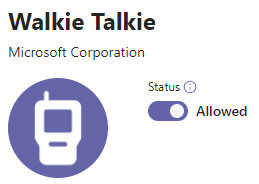
Well it seems that the Walkie Talkie feature for Teams has become publicly available. The ability to use your mobile phone to essentially click-to-talk to another Team’s User. How useful would this be generally has yet to be seen. You could imagine frontline workers using this to connect to each other, getting the latest status of a warehouse product for example. But outside of that, not sure Helpdesk Support would appreciate a caller being able to connect directly.
Anyway, whilst available, it does require a little configuring to get the functionality working.
- First step, is accessing the Teams Admin Console
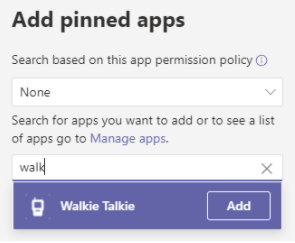
- Then scroll to Teams Apps > Setup Policies > Click Add Apps
Search for Walkie Talkie, select the Walkie Talkie App and click Add.
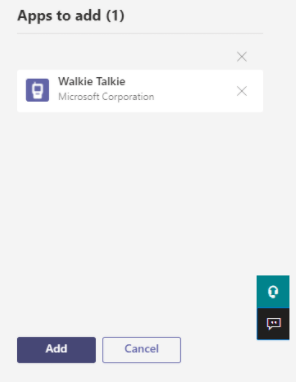
Confirm and click Add again and then press Save. Now, it’ll take about 48hrs for the App to be listed. So be patient.
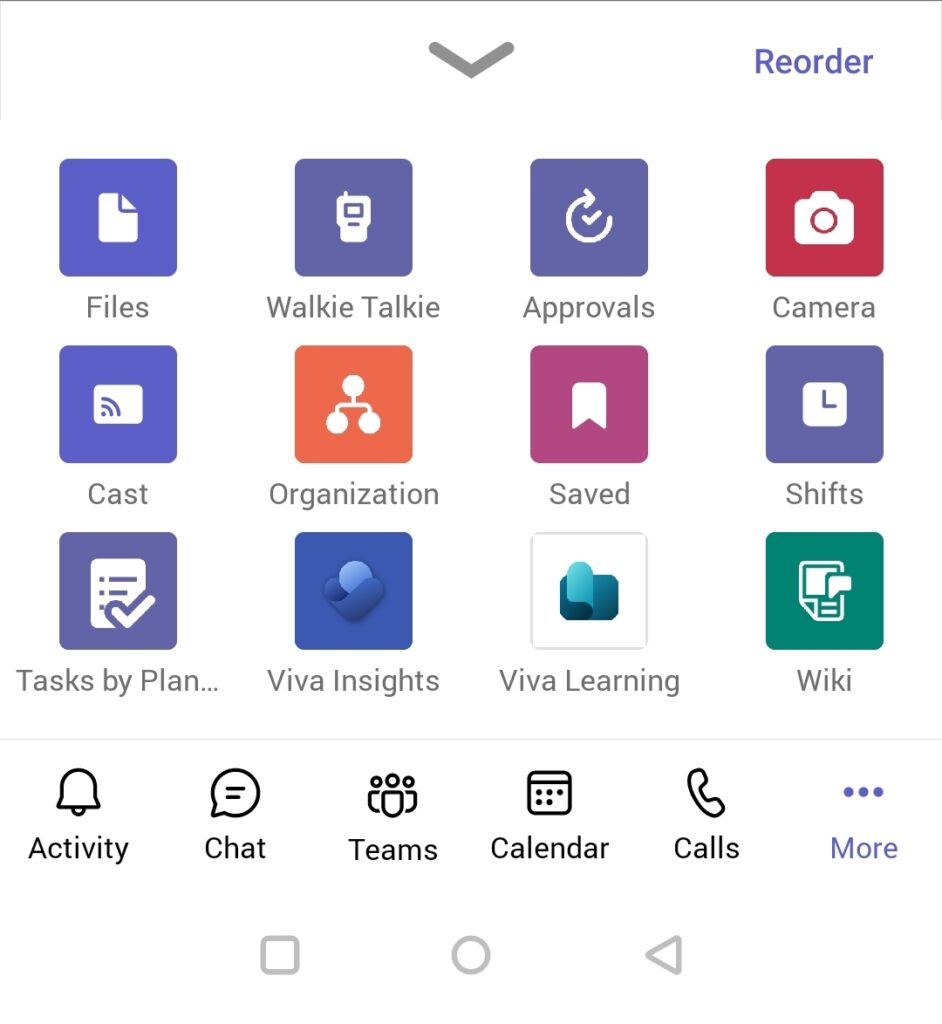
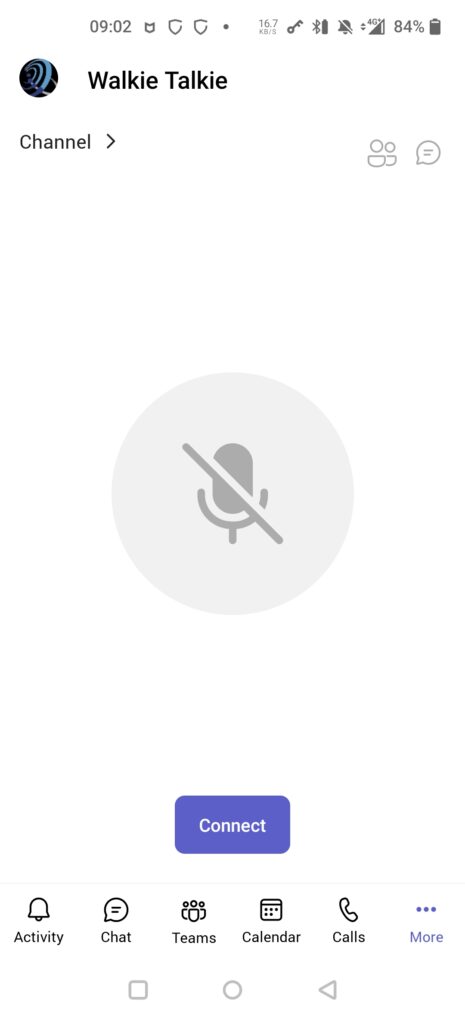
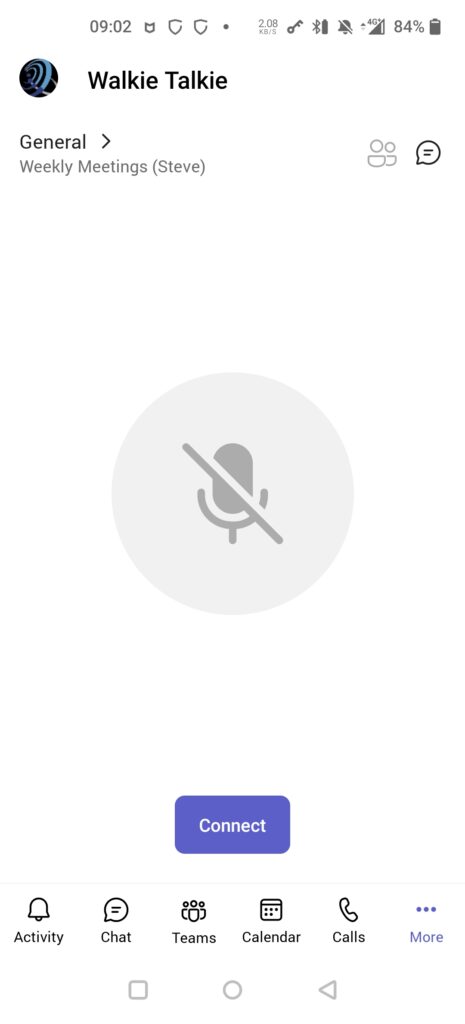
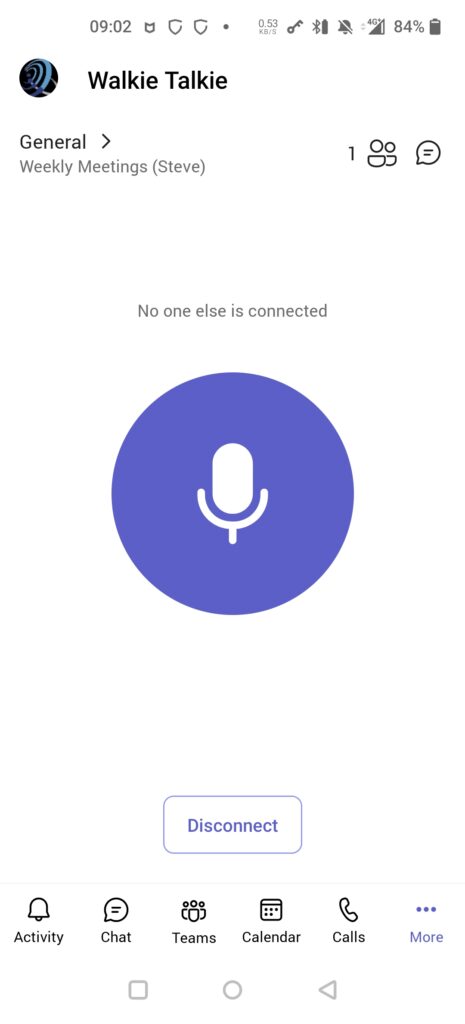
….24hours later…the Walkie Talkie icon has appeared on device. As it hasn’t been used before, it is hiding under More. However, this can be reordered to suit. Click on Walkie Talkie, select Channel to be used and as long as there is someone else in the same Channel using Walkie Talkie, you’re good to go.
-

Upcoming articles
- M365 E5 – Security Perspective
- W365 CloudPC – Local Resource Policies
- W365 CloudPC OPNC – VPN vs. VWAN
- Implementing PIM
- Custom Domains in Azure
- The plan will also be to post articles surrounding conferences which maybe of use from a business and/or technical standpoint.
-

To Toast or not To Toast
If we think about Autopilot and it’s relationship with readiness and toast notifications. It makes sense, to apply a toast notification when the device is ready for usage. I mean, you don’t want the user playing around with a device that is still running the autopilot process. This could cause untoward issue. But then on the flip side, it would potentially be a nice to have a little pop up that says “device is ready for use…got for it!”. This article is currently under draft whilst i work out the specifics, so stay tuned.

-

Dummy New-1
Lorem Ipsum is simply dummy text of the printing and typesetting industry. Lorem Ipsum has been the industry’s standard dummy text ever since the 1500s, when an unknown printer took a galley of type and scrambled it to make a type specimen book. It has survived not only five centuries, but also the leap into electronic typesetting, remaining essentially unchanged. It was popularised in the 1960s with the release of Letraset sheets containing Lorem Ipsum passages, and more recently with desktop publishing software like Aldus PageMaker including versions of Lorem Ipsum.
-

Dummy New-2
Lorem Ipsum is simply dummy text of the printing and typesetting industry. Lorem Ipsum has been the industry’s standard dummy text ever since the 1500s, when an unknown printer took a galley of type and scrambled it to make a type specimen book. It has survived not only five centuries, but also the leap into electronic typesetting, remaining essentially unchanged. It was popularised in the 1960s with the release of Letraset sheets containing Lorem Ipsum passages, and more recently with desktop publishing software like Aldus PageMaker including versions of Lorem Ipsum.