Tag: Microsoft

  • Microsoft Connectivity Tools

    Microsoft Connectivity Tools

    Recently, we were trying to work out an issue whereby a virtual device we were accessing was breaking out to the Internet from India. Our first indication was the Google Browser defaulting to Google India. For us, very confusing. Our expectation was as standard of breakout from England or America. So we had to work out the path, from source to destination. We wanted a look to use on the virtual device, nothing installable, something easy and something visual. There are a lot of tools out there that will do this job, be it installable or not. However, for me, i delve into my toolbox and use something tried and trusted.

    It was this reading that opened our eyes. Our virtual devices were breaking out to the Internet from a point 9,509 miles / 15,303km away.

    https://testconnectivity.microsoft.com

    https://connectivity.office.com

  • Microsoft Teams Walkie Talkie

    Microsoft Teams Walkie Talkie

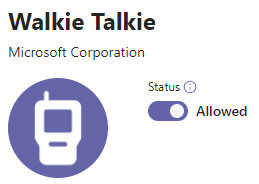
    Well it seems that the Walkie Talkie feature for Teams has become publicly available. The ability to use your mobile phone to essentially click-to-talk to another Team’s User. How useful would this be generally has yet to be seen. You could imagine frontline workers using this to connect to each other, getting the latest status of a warehouse product for example. But outside of that, not sure Helpdesk Support would appreciate a caller being able to connect directly. 

    Anyway, whilst available, it does require a little configuring to get the functionality working. 

    • First step, is accessing the Teams Admin Console 
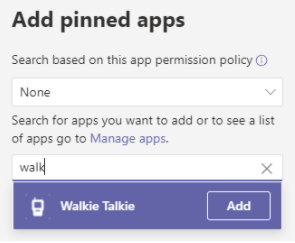
    • Then scroll to Teams Apps > Setup Policies > Click Add Apps 

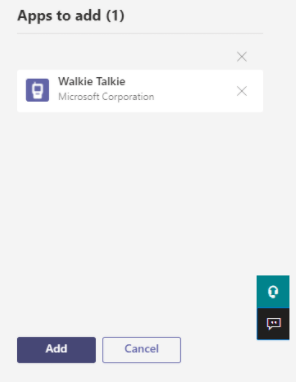
    Search for Walkie Talkie, select the Walkie Talkie App and click Add. 

    Confirm and click Add again and then press Save. Now, it’ll take about 48hrs for the App to be listed. So be patient. 

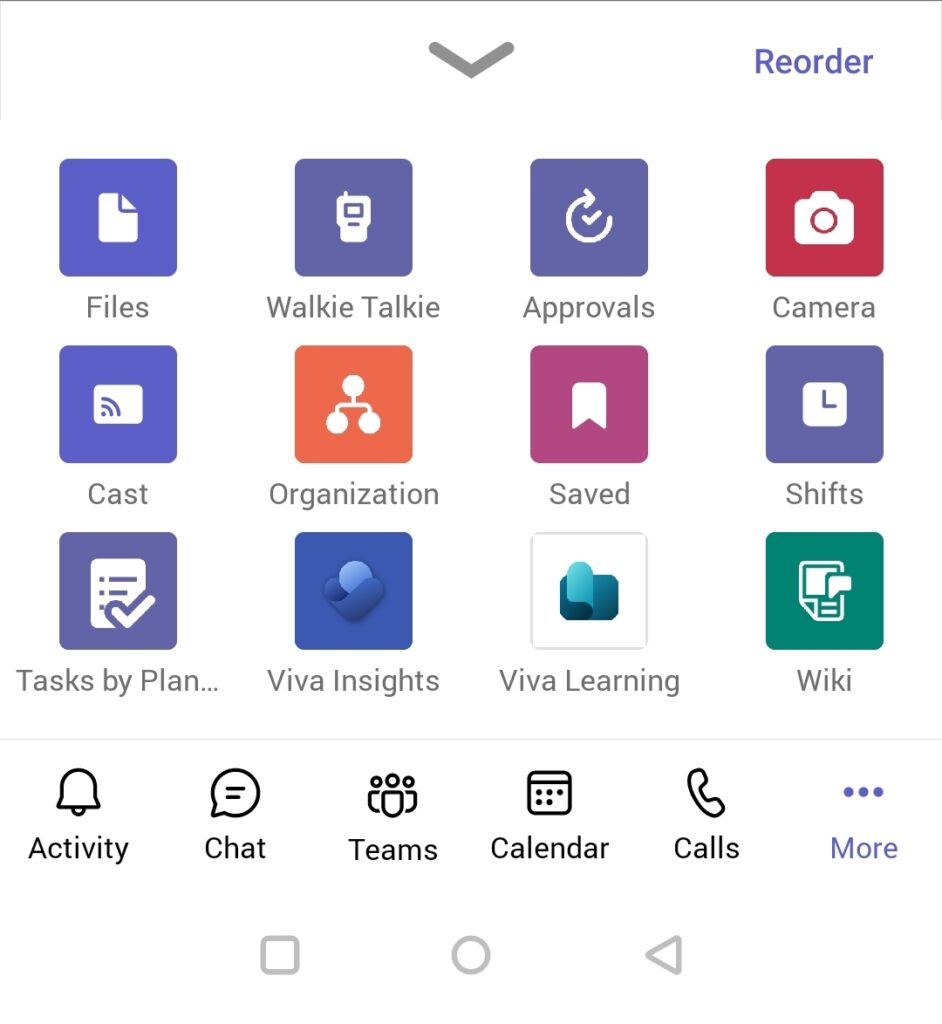
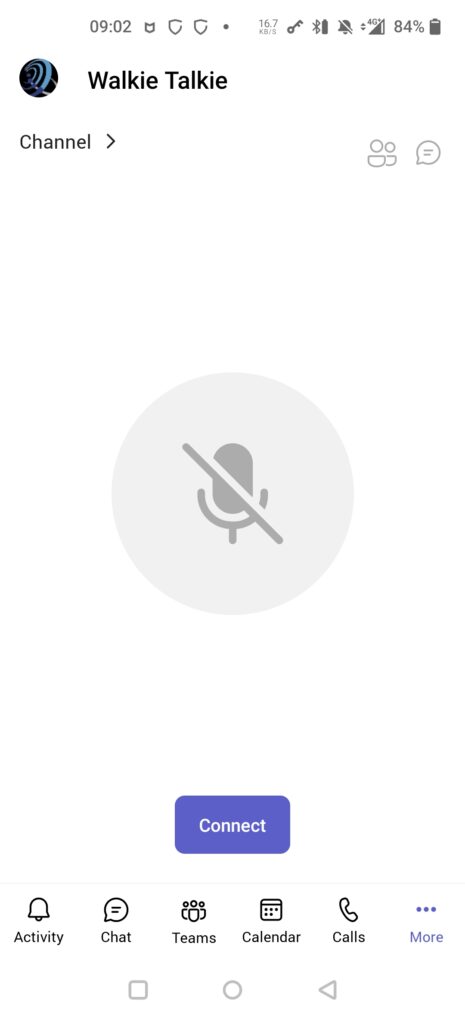
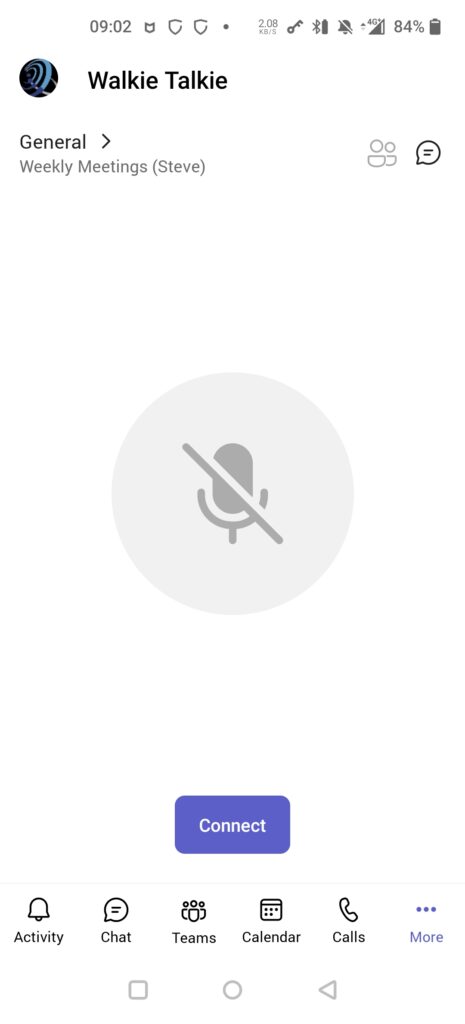
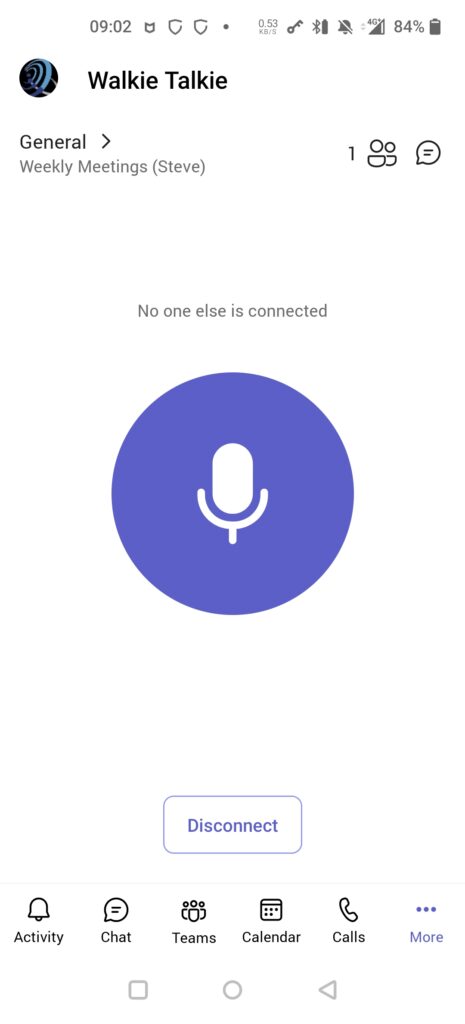
    ….24hours later…the Walkie Talkie icon has appeared on device. As it hasn’t been used before, it is hiding under More. However, this can be reordered to suit. Click on Walkie Talkie, select Channel to be used and as long as there is someone else in the same Channel using Walkie Talkie, you’re good to go.